

SEO
The beauty of having structured data, is that you can harness it for data entry, consistent layouts, search, and more importantly, Search Engine Optimization. JReviews is packed with SEO features, so you can spend more time writing great content and growing your site.
SEO Front & Center
We've put our SEO knowledge to work by adding many features and functionality in JReviews to make it as easy as possible for you to make optimizations without having a technical background.
Many thinngs happen automatically under the hood, like optimizations for Schema.org structured data markup, Facebook Open Graph and Twitter Cards. You can augment these through settings, and also take care of other basic things like page urls, titles and descriptions.
Site ranking depends on many factors other than content, like reputation, and authority. There's no guarantee that you will get the top position, or that Google will display featured or review snippets for your site. However, if you focus on adding great content and follow the guidelines below, you have a fighting chance!
Below you can find a list of a few basic pages you should have on any site:
- About page
- Contact page
- Terms and privacy policy pages
Make sure these are indexable to get some ♥️ from Google.
Listing Detail Pages
When you create a listing, the listing title is used for both the listing heading and the page title. There are instances where you want the page title to be different, or where adding dynamic information to the title can come in handy. For these situations JReviews makes it extremely easy to use the listing's structured data to optimize the page title and heading.
To get started, go to Setup → Listing Types Manager → SEO Manager where you'll find the Listing Detail Page section.
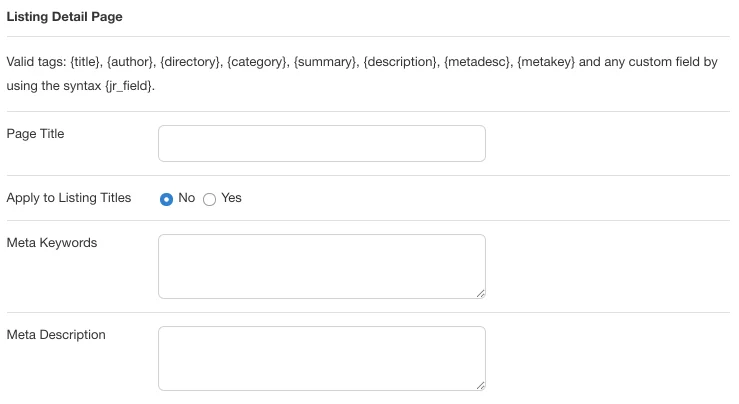
Lets come up with a few examples where the title can be augmented with structured data coming from custom fields. In these examples, we will add the title format to the Page Title setting.
Adding the start date for an event
{title} - {jr_eventdate}
The output will be:
Healthy Cooking Class - March 27, 2020
Adding category and city to a listing
{title} in {jr_city} {category}
The output will be:
Harborside Inn in Boston Hotels
By including more information in the page title, you have a better chance of competing for long tail keywords, in addition to targeting the specific listing keywords.
Enable Apply to Listing Titles to use the augmented title as the listing heading.
The description and keywords settings work like the title setting. By default the meta description will be populated by looking into the meta description field, then the summary, and finally the description. Using whichever one is not empty in that order. You can augment those using custom fields, or completely replace them using the content of another field.
Schema.org Structured Data
JReviews v6 can add Schema.org structured data to listing detail pages as JSON-LD using an application/ld+json script. With the new listing detail page, the structured data is generated independently from the listing detail page template, so you do not need to add Microdata attributes such as itemscope, itemtype, or itemprop to your custom field output formats.
Open the Structured Data setup page
Go to Setup → Structured Data in the JReviews administration. The page lists your listing types and shows the current Schema type for each one. Click a listing type to configure its structured data.
On the listing type's Structured Data screen, you can configure:
Schema Type- the primary Schema.org type JReviews should output for listings in this listing type.Additional Schema Types- optional Schema.org types emitted throughadditionalTypewhen the same listings also fit another type.Settings Map- the mapping between first-class Schema.org properties and JReviews fields.Default Property Values- hardcoded fallback values for Schema.org properties when no matching field exists.Additional Properties- supplemental field values emitted as Schema.orgPropertyValueentries underadditionalProperty.
The Schema Type selector is searchable and includes the Schema.org types supported by JReviews. The default type is Article, but most directories should choose a more specific type when one fits the content, such as Product, Event, LocalBusiness, FoodEstablishment, LodgingBusiness, Movie, Book, Recipe, Course, SoftwareApplication, Organization, Game, or JobPosting.
Use Schema.org to review available types and properties. If your goal is to qualify for Google rich results, also review Google's structured data feature gallery, because Google supports rich results only for specific structured data types and requires specific properties for each feature.
Add additional Schema.org types
Use Additional Schema Types when a listing type has one primary Schema.org type, but the same listings should also be identified as another Schema.org type. The primary Schema Type remains the main structured data contract, and the extra values are added through the Schema.org additionalType property.
The selector shows recommended types first, followed by the full supported type list. You can also type a Schema.org type name that is not listed. JReviews normalizes saved values to Schema.org URLs, so TouristAttraction is output as https://schema.org/TouristAttraction.
For example:
- A food directory can use
FoodEstablishmentas the primary type and addTouristAttractionorPlacewhen the same listings are also visitor destinations. - A product directory can use
Productas the primary type and addVehicle,Service, orIndividualProductwhen those types describe the catalog more precisely. - A content directory can use
Articleas the primary type and addNewsArticle,BlogPosting, orReportwhen those labels fit the content.
With one additional type, JReviews outputs a string:
"additionalType": "https://schema.org/TouristAttraction"
With multiple additional types, JReviews outputs an array:
"additionalType": [
  "https://schema.org/TouristAttraction",
  "https://schema.org/LocalBusiness"
]
Map fields to Schema.org properties
After choosing the Schema type, map the Schema.org properties to your listing data in the Settings Map section.
The field selector includes common listing data, such as the listing title, URL, category, created date, modified date, summary, description, author, and author profile URL. It also includes the custom fields assigned to the selected listing type.
For example:
- A product directory can use
Productand map fields such as brand, SKU, price, and currency. - An events directory can use
Eventand map start date, end date, organizer, venue, and location fields. - A restaurant directory can use
FoodEstablishmentorRestaurantand map cuisine, phone, address, and geo fields. - A hotel directory can use
LodgingBusinessorHoteland map address, phone, price range, images, ratings, and reviews.
Use fields that match the visible listing content. Structured data should describe the same listing information users can see on the page.
If a property should use the same value for every listing in the listing type, add it under Default Property Values. For example, if all listings are in the same country, you can set a default value for address.addressCountry instead of creating a custom field for it. A field mapping overrides the default value for the same property.
Default values are cleaned and cast before output. Values such as true, false, yes, no, on, off, 1, and 0 are converted to booleans. Other integer or decimal strings are converted to numbers. This lets you set boolean and numeric Schema.org properties without turning them into JSON strings.
JReviews automatically omits empty values from the JSON-LD output. Field values are cleaned before output, and date values are normalized for JSON-LD, so you do not need to use legacy field output tags such as {schema_date} for the new mapping flow.
Add supplemental properties
Use Additional Properties when you need to publish extra facts that do not have a dedicated field in the selected Schema type. Each row maps a JReviews field to a Schema.org PropertyValue entry under additionalProperty.
Each additional property row has:
Field- the JReviews custom field or supported core listing field to read from.Property Name- the label to use as thePropertyValuename.Unit Code- optional Schema.org or UN/CEFACT unit code, such asMTR.Unit Text- optional human-readable unit text, such asm.Enabled- turn the row on or off without deleting it.
For example, a custom field named jr_wallheight with the property name Wall height, unit code MTR, and unit text m can output:
"additionalProperty": [
  {
    "@type": "PropertyValue",
    "name": "Wall height",
    "value": "220",
    "unitCode": "MTR",
    "unitText": "m"
  }
]
When a mapped field has multiple values, JReviews outputs one PropertyValue per non-empty value using the same property name:
"additionalProperty": [
  {
    "@type": "PropertyValue",
    "name": "Cuisine",
    "value": "American (New)"
  },
  {
    "@type": "PropertyValue",
    "name": "Cuisine",
    "value": "Italian"
  }
]
Use the Settings Map for official properties available on the selected Schema type. Use Additional Properties for supplemental facts, measurements, classifications, and feature values that are better represented as flexible PropertyValue entries.
What JReviews adds automatically
JReviews builds the JSON-LD from the selected Schema type, configured field mappings, default values, additional types, additional property rows, and listing data available on the detail page.
Depending on the selected Schema type, JReviews can include common properties such as title/name/headline, description, URL, images, author, address, geo coordinates, offers, aggregate ratings, reviews, and comments. Ratings and review-related properties are only included when the listing type and listing data support them.
When Additional Schema Types are configured, the generated JSON-LD includes additionalType. When enabled Additional Properties rows resolve to non-empty field values, the generated JSON-LD includes additionalProperty.
The generated JSON-LD is added to the page head as:
<script type="application/ld+json">...</script>
Because the JSON-LD is generated separately from the template, the mappings continue to work when you customize the Blade template or use YOOtheme elements. The template controls the visible listing layout; the Structured Data setup controls the Schema.org data sent to search engines.
Validate the output
After saving your mappings, open a published listing detail page and validate it with these tools:
- Google Rich Results Test - checks whether Google can read the structured data and whether the page may be eligible for Google rich result features.
- Schema Markup Validator - checks the Schema.org markup itself and is useful for reviewing the generated JSON-LD structure.
Fix errors first. Warnings or recommended properties usually mean that the JSON-LD is valid, but that you can provide more information for the selected type. If a Google rich result feature is important for the page, review Google's documentation for that feature and make sure all required properties are present.
Migrating from legacy Microdata
Older JReviews setups used Microdata in the listing detail template and in custom field output formats. With the new v6 listing detail page, configure listing structured data through Setup → Structured Data instead.
If you previously added markup like this to custom field output formats:
<span itemprop="brand">{fieldtext}</span>
<meta itemprop="brand" content="{fieldtext}" />
move that field-to-property relationship into the Settings Map for the listing type. If the old markup described supplemental facts that are not first-class properties on the selected Schema type, move those rows into Additional Properties. Custom field output formats should focus on visible field output, while the Structured Data setup handles the JSON-LD.
Developer customization
Developers can customize the generated Schema.org data before JReviews converts it to JSON-LD by using the jreviews:listing:structured_data filter. The filter receives the structured data array and the listing model, making it possible to add, remove, or adjust Schema.org properties for advanced use cases.
See the hook reference: jreviews:listing:structured_data.
Review Detail Pages
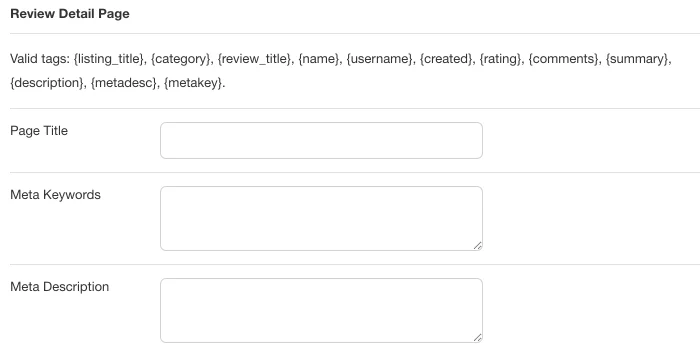
The review detail page, also serves as the page where users can view and write comments for reviews. On these pages you can customize the page title, meta description and meta keywords tags for each listing type at Setup → Listing Types Manager → SEO Manager.
Category Pages
To make it easier to adjust titles and descriptions for category pages, go to Configuration → Category SEO Manager.
 Here you can quickly adjust page title, meta description and meta keywords in one place, without having to go through each category page individually. You can also choose to use the page title and meta description as the page heading and description for category pages.
Custom Field Pages
An awesome feature powered by custom fields is click2search and it can be enabled for each field individually.
Imagine you have a Cuisine custom field for restaurant listings. In the field settings, you can enable click2search and instantaly have a valuable, indexable page for Italian Restaurants.
Optimizing Page Titles
The default title for click2search pages is field option text. This can be optimized to expand the keywords and make it more valuable for SEO. To do this go to Configuration → Field SEO Manager. There you can find the options to set values for page title, meta keywords and meta description for these field pages.

For the Cuisine custom field, change the Meta title setting to:
{fieldvalue} Food Restaurants
The result is a nice looking page title Italian Food Restaurants, that will dynamically replace the {fieldvalue} tag with the cuisine options (French, American, Indian, etc.).
You can use the same logic to customize the output of the meta description and keywords tag. While Google has said, they no longer give any importance to the keywords tag, we've left it there for historical reasons.
Including the Category in Page Titles
If you have a field that's used in multiple categories, it can be useful to dynamically insert the category title. For a City custom field, this means you could have dynamic page titles like Restaurants in New York and Hotels in New York using the format:
{category} in {fieldvalue}
The default click2search page doesn't doesn't have access to any category information, because this needs to be derived from the URL parameters. An additional step is needed to add the category context. Update the City field and change the click2search format to:
tag/{fieldname}/{optionvalue}/?cat={catid}
This will give the click2search page access to the category information and will also filter the results by category.
Showing Page Heading and Description
At the top of the Field SEO Manager page, there are settings to enable the page title and meta description as heading and page descriptions so these are shown directly on the page.
Field Option-specific Descriptions
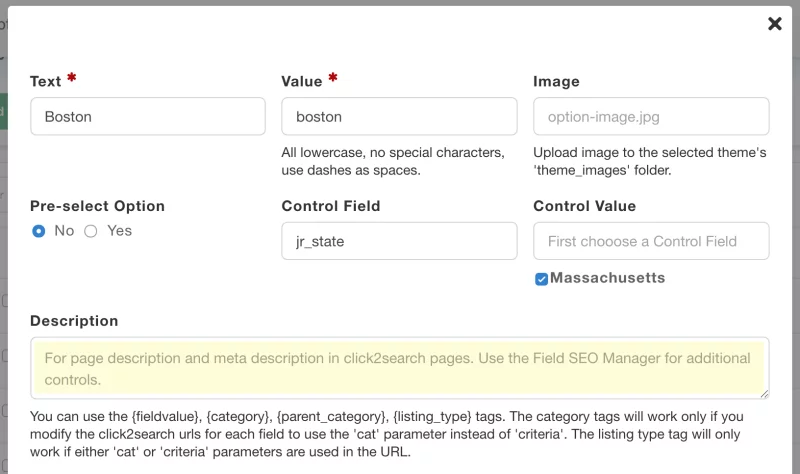
You can have even more control over the description for field pages, with a different description assigned for each field option. Click on the list of options for any field to find the Description setting. You can also use some pre-defined tags within the description, like the {fieldvalue}, {category} and {listing_type}.
Custom Landing Pages
You can create targeted landing pages that combine multiple filters and a specific listing ordering using custom lists. Continuing with the restaurants example, lets say you wanted to have a page for the Top 10 Italian Restaurants in Boston.
Creating this landing page in JReviews takes just a couple of steps.
Perform an advanced search
For this example, we filter by category Restaurants, city Boston, cuisine Italian, and sort the results by highest user rating. On the demo site, the search results URL looks like this:
https://demo.jreviews.com/search/search-results?order=rating&dir=2&cat=24&query=all&usematch=1&matchall=jr_cuisine&filter=192&jr_state=new-york&jr_city=new-york&jr_cuisine=italian
From this URL, we can extract the parameters we'll use for our custom list menu:
order=rating&dir=2&cat=24&query=all&usematch=1&matchall=jr_cuisine&filter=192&jr_state=new-york&jr_city=new-york&jr_cuisine=italian
Not all of them are needed, like the filter parameter, but for simplicity, we can copy the entire query string.
Create a new JReviews Custom List menu
Paste the above search result parameters in the custom params setting. Fill out the menu title, page title and description. Set the total page results and page limit to 10, then save. And voilà! You have the perfect landing page.
Learn more about Custom Lists and become a pro using custom params, Custom Where and Custom Order settings to generate filtered lists in menus, the Listings Module (Joomla) and Listings Widget (WordPress), and Shortcodes.
Weeblr Joomla 4SEO
When using Weeblr 4SEO together with JReviews, it's recommended to disable the social and structured data tags generated by 4SEO for listing detail pages. JReviews already generates these tags with better optimization.
To register the custom hook handlers create the file /libraries/weeblr/forseo_functions.php if it does not exist yet.
The 4SEO functions file must always start with:
<?php
/**
 * 4SEO hooks file
 *
 * You can use 2 variables to access 4SEO content:
 *
 * $factory: access variables
 * $hooks: add handlers
 */

// no direct access
defined('WBLIB_EXEC') || die;
After that, add the following code to let JReviews handle the tags for listings in JReviews categories:
use JReviews\App\Models\Listing;

function forSeoDisableForJReviews($injectData, $pageData) {
    $requestVars = $pageData->get('input_vars');

    $option = $requestVars['option'] ?? '';
    $view = $requestVars['view'] ?? '';
    $id = $requestVars['id'] ?? false;

    if ($option !== 'com_content' && $view !== 'article') {
        return $injectData;
    }

    if ($id && Listing::select('id')->withoutGlobalScope('excludeNotNeededForCount')->find($id)) {
        return false;
    }

    return $injectData;
}

$hooks->add('forseo_should_inject_seo_data', 'forSeoDisableForJReviews');
$hooks->add('forseo_should_inject_structured_data', 'forSeoDisableForJReviews');